
Introduction & Basics
0/8
Company & Master Setup
0/7
Account Heads || Ledger Create in Tallyprime
0/12
Inventory & Stock Management
0/9
Goods and Services Tax in Tally Prime
0/9
Understanding Voucher Types
0/21
Financial Statements & Reporting
0/6
Advance Tally
GST & Taxation
0/5
Advance Features (Optional / Professional Level)
0/7
✅ Setting Tax Rate of Stock Items
🧾 Setting GST Tax Rate for Stock Items in TallyPrime
Different stock items attract different GST tax rates as per Government rules.
Businesses dealing with goods must apply the correct tax rate during Purchase and Sales transactions. In TallyPrime, you can define GST details at the Stock Item level. Once configured, the tax will be calculated automatically in transactions.
⚙️ Steps to Set GST Details for Stock Items
🪜 Step 1: Enable GST Details in Stock Item
- Open Stock Item Master (Create or Alter).
- Press F12 (Configure).
- Set Set GST Details to Yes.
Note:
If you do not see this option, ensure that:
- Press F11 (Features)
- Enable Goods and Services Tax (GST) = Yes
🪜 Alternative Method (Only for Current Master)
- Press Ctrl + I (More Details).
- Type or Select GST Details.
- Press Enter.
If the option is inactive, TallyPrime will prompt you to enable GST for the Company.
Select Yes or press Y to continue.
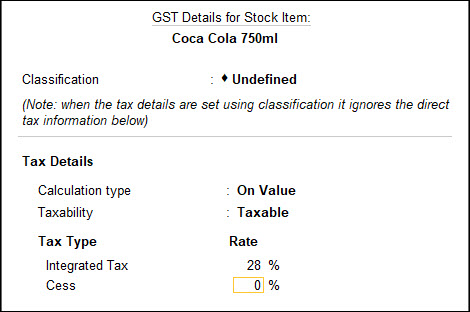
🪜 Step 2: Configure GST Fields
- GST Applicable:
Select Applicable if the item is taxable. - Set/Alter GST Details:
Set to Yes to enter GST rate details. - Enter the required details:
- HSN Code
- Taxability (Taxable / Exempt)
- GST Rate (CGST, SGST, IGST)
![TallyPrime Assignment-11 [CREATING STOCK ITEMS / PRODUCTS / GOODS ] – TallyPrime Book (Tutorial : Printing Book & E-Book-PDF)- Learn Anytime & Anywhere !](https://tallyprimebook.com/wp-content/uploads/2024/01/49-Practical-Assignment-TallyPrime.png)
📌 Example
- Stock Item: LED Bulb
- HSN Code: 8539
- GST Applicable: Applicable
- GST Rate: 12%
Now, whenever you create a Sales or Purchase voucher,
TallyPrime automatically calculates GST based on the rate defined in the Stock Item.
🎯 Benefits
- Automatic GST calculation
- Reduces manual errors
- Saves time during billing
- Ensures GST compliance
