
Specify Cheque Range and Format to Print Cheques
TallyPrime manages your cheque printing and cheque book operations for any bank. It provides flexible features to simplify cheque handling and tracking.
1. Cheque Range Management
You can set cheque ranges for each cheque book.
-
Cheque numbers are applied automatically based on the defined range.
-
No need to manually select cheque numbers.
-
Helps track assigned cheques.
-
Helps monitor unused (unassigned) cheques.
-
Cheque numbers can still be changed manually if required.
2. Cheque Format Customization
TallyPrime allows you to:
-
Set cheque dimensions and alignment.
-
Modify predefined cheque formats.
-
Use bank-supported predefined formats.
-
Create user-defined cheque formats if required.
This ensures compatibility with different bank cheque layouts.
3. Amount Format (Lakhs / Millions)
You can choose how the cheque amount is printed:
-
In Lakhs (Indian format)
-
In Millions (International format)
This can be set based on the party’s country.
4. Company Name Control
You can disable printing of the Company Name on cheques.
This is useful when:
-
Multiple branches share the same cheque book.
-
A common cheque book is used for different companies.
- Open the bank ledger.
- Press Alt+G (Go To) > Alter Master > type or select Ledger > and press Enter.
- Select the bank ledger. For example, Kotak Mahindra Bank.
- Enable Set/Alter Bank configuration.
If you are on TallyPrime Release 5.1 or earlier, then you do not have to enable the option. The Cheque configurations are available on the Ledger Creation/Alteration screen. - Set the Cheque book range under Bank Configuration.
- Enable Set/Alter range for Cheque Books.
- In the Cheque Book Management screen, enter the cheque number in the fields From Number and To Number. The Number of Cheques appears automatically.
Alternatively, you can enter the From Number and the Number of Cheques. The To Number will appear automatically. - Enter the Name of Cheque Book and press Enter.
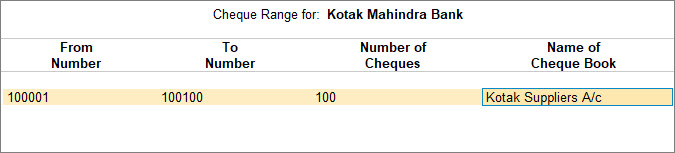
- Set Enable Cheque Printing to Yes.
- Enable Set/Alter Cheque Printing configuration.
- In the Cheque Format Selection screen, you can view all the cheque formats supported for the bank selected in the Bank name field.
- Select the Cheque Format and press Enter to view/modify the pre-configured dimensions.
- Specify the cheque printing dimensions and other requirements.
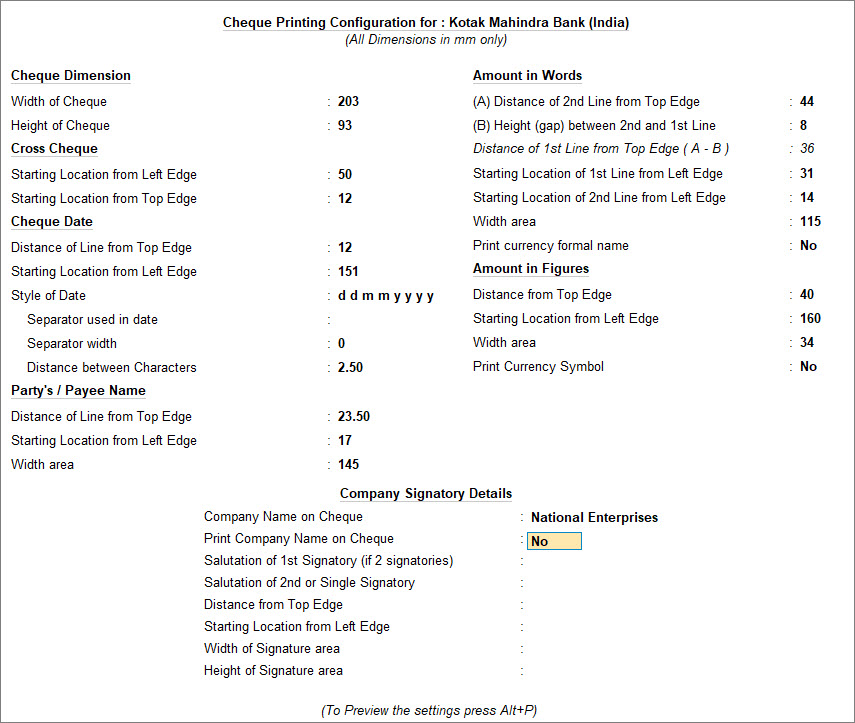
- Print the Sample Cheque.
- Press Ctrl+P (Print) > P (Print) to print and I (Preview) to preview the settings. The Sample Cheque Printing screen appears.
- Press C (Configure) and set the Cheque Alignment.
You can select any one of the options mentioned below for Cheque Alignment.- Horizontal: Print the cheque horizontally (oriented as landscape).
- Vertical-Centre: Print the cheque vertically at the centre of the cheque leaf.
- Vertical-Left: Print the cheque vertically on the left-hand side of the cheque leaf.
- Vertical-Right: Print the cheque vertically on the right-hand side of the cheque leaf.
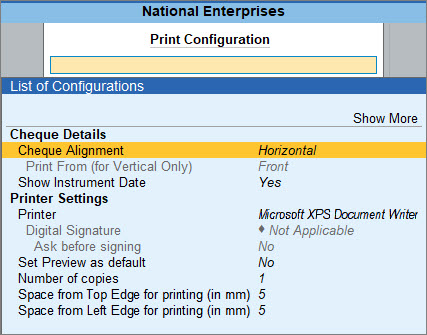
- Press Esc and press I (Preview) to generate the preview.
- Press Esc to return to the Cheque Dimension screen.
- Press Ctrl+A to save.
You can then print the cheques immediately after the payment voucher is recorded.
Alter Predefined Cheque Dimensions

- Open the Bank ledger.
- Press Alt+G (Go To) > Alter Master > type or select Ledger > and press Enter.
- Select the bank ledger. For example, Kotak Mahindra Bank.
- Enable Set/Alter Bank configuration.
If you are on TallyPrime Release 5.1 or earlier, then you do not have to enable the option. The Cheque configurations are available on the Ledger Creation/Alteration screen. - Under Bank Configuration, set Enable Cheque Printing to Yes and Enable Set/Alter Cheque Printing configuration.
The Cheque Format Selection screen appears as shown below: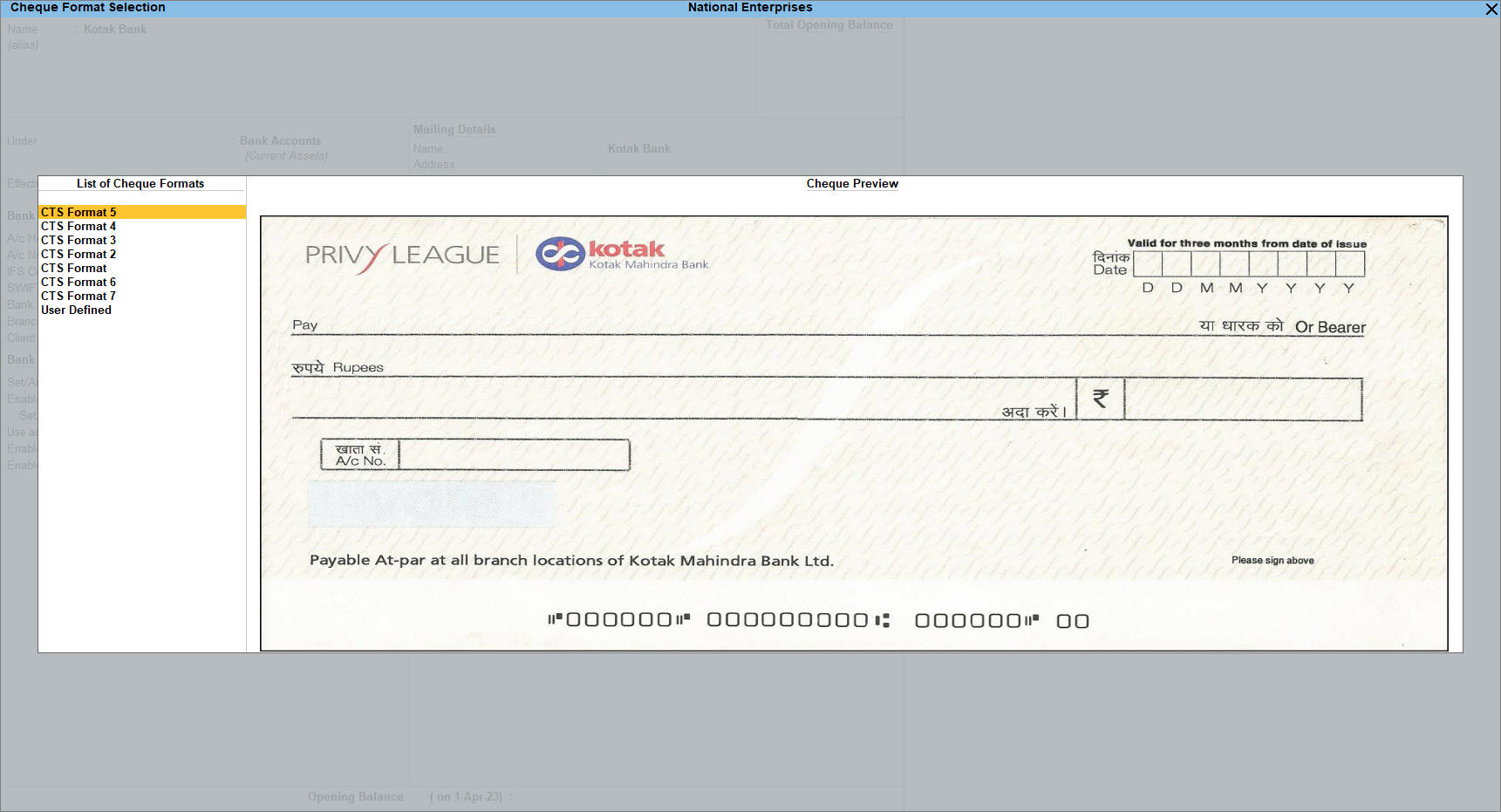
- Update the cheque dimensions.
- Select the required format from the list and press Enter. The Cheque Dimensions screen appears.
- Alter the cheque dimensions manually or press Alt+B (Copy From) to copy the predefined dimensions from the List of Configured Banks.
If you have previously altered a predefined format for any other bank ledger, then the bank ledger starts appearing under the List of Configured Banks. - Press Ctrl+A to save the Cheque Dimensions screen.
- In the Sample Cheque Printing screen, configure, preview, or print the cheque.
You can then print the cheque with the set dimensions.
