
Free items & Zero Valued in Sale Voucher
In business, giving free items is a promotional strategy used to attract customers. Businesses may supply extra quantity or different items without charging additional cost. In TallyPrime, free items can be recorded in two different ways during Sales Voucher entry.
Key Points:
- Free items help in marketing and customer attraction.
- You can bill less quantity and supply more quantity.
- You can supply free items with zero value.
- Stock reduces based on actual quantity supplied.
- Invoice value is calculated only on billed quantity.
Methods to Account for Free Items
- Use Actual and Billed Quantities
- Use Zero-Valued Transaction
Use Actual & Billed Quantities in Sale Voucher
This method allows you to record the actual quantity delivered to the customer and bill only the chargeable quantity. The extra quantity is treated as free.
Example:
Customer orders 10 pcs → You bill only 8 pcs → 2 pcs given free.
Steps:
- Press F11(Features) > set Use separate Actual and Billed Quantity columns in invoices to Yes.
If you do not see this option, set Show more features to Yes. - Enter the stock item details.
- In the sales invoice, select the stock item details.
- Under Quantity column, you can see two options Actual and Billed.
- Actual: Enter the actual quantity sold to the customer.
- Billed: Enter the quantity billed to the customer.
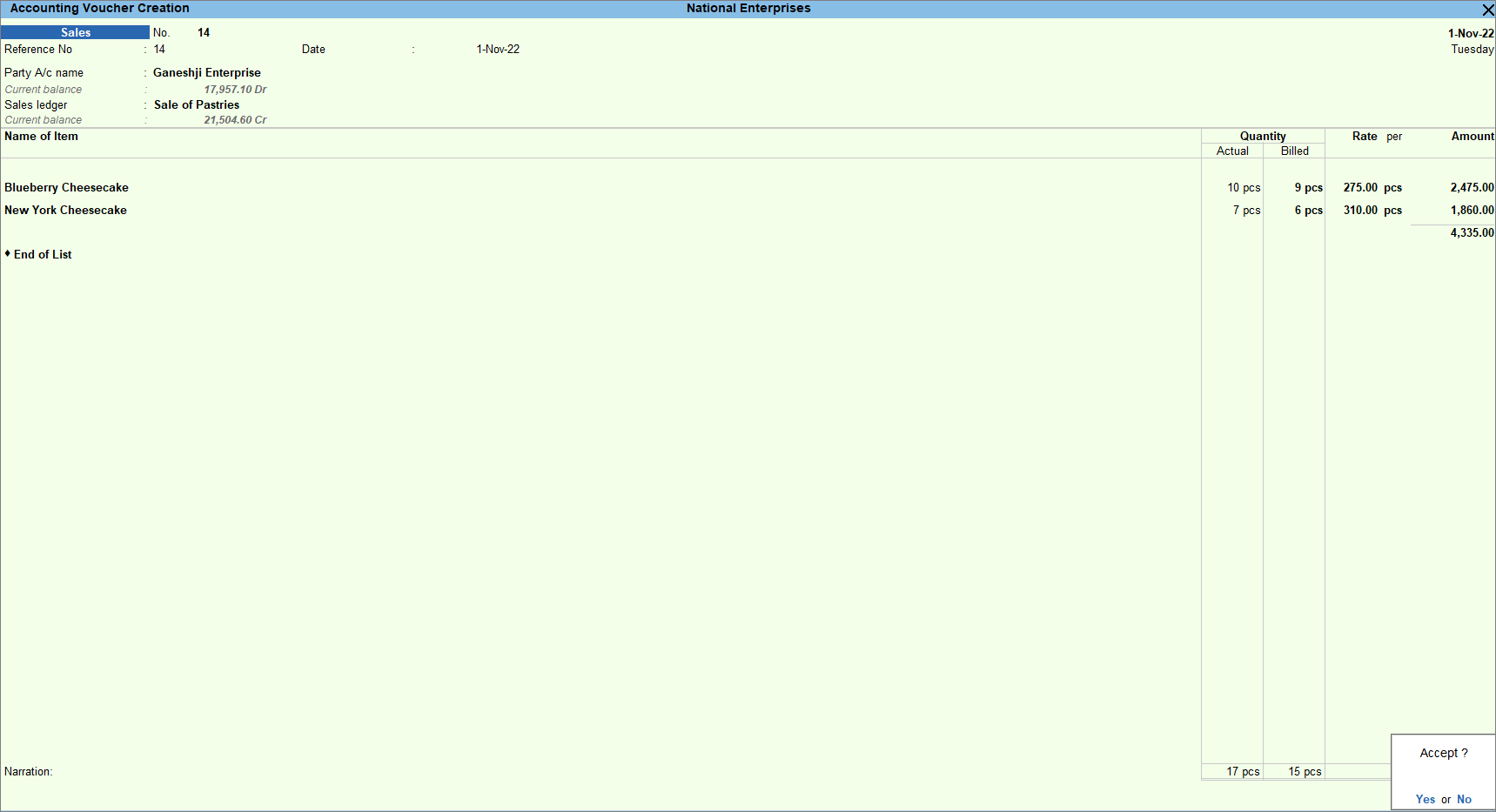
- As always, press Ctrl+A to save.
Use Zero Valued in Sale Voucher
Use Zero-Valued Transaction
In this method, free items are recorded with zero rate and zero amount while billing normal items at regular rate.
Steps:
-
- Configure the voucher type for sales.
- Press Alt+G (Go To) >Alter Master > Voucher Type > type or select Sales > press
- Alternatively, Gateway of Tally > Alter > Voucher Type > type or select Sales > press Enter.
- In the Sales Voucher type screen, set the option Allow zero-valued transactions to Yes.
- In the sales invoice, provide details of the items – Quantity, Rate, and Amount – to be billed.
- Select the free item and enter the Quantity and keep the Rate and Amount fields blank.
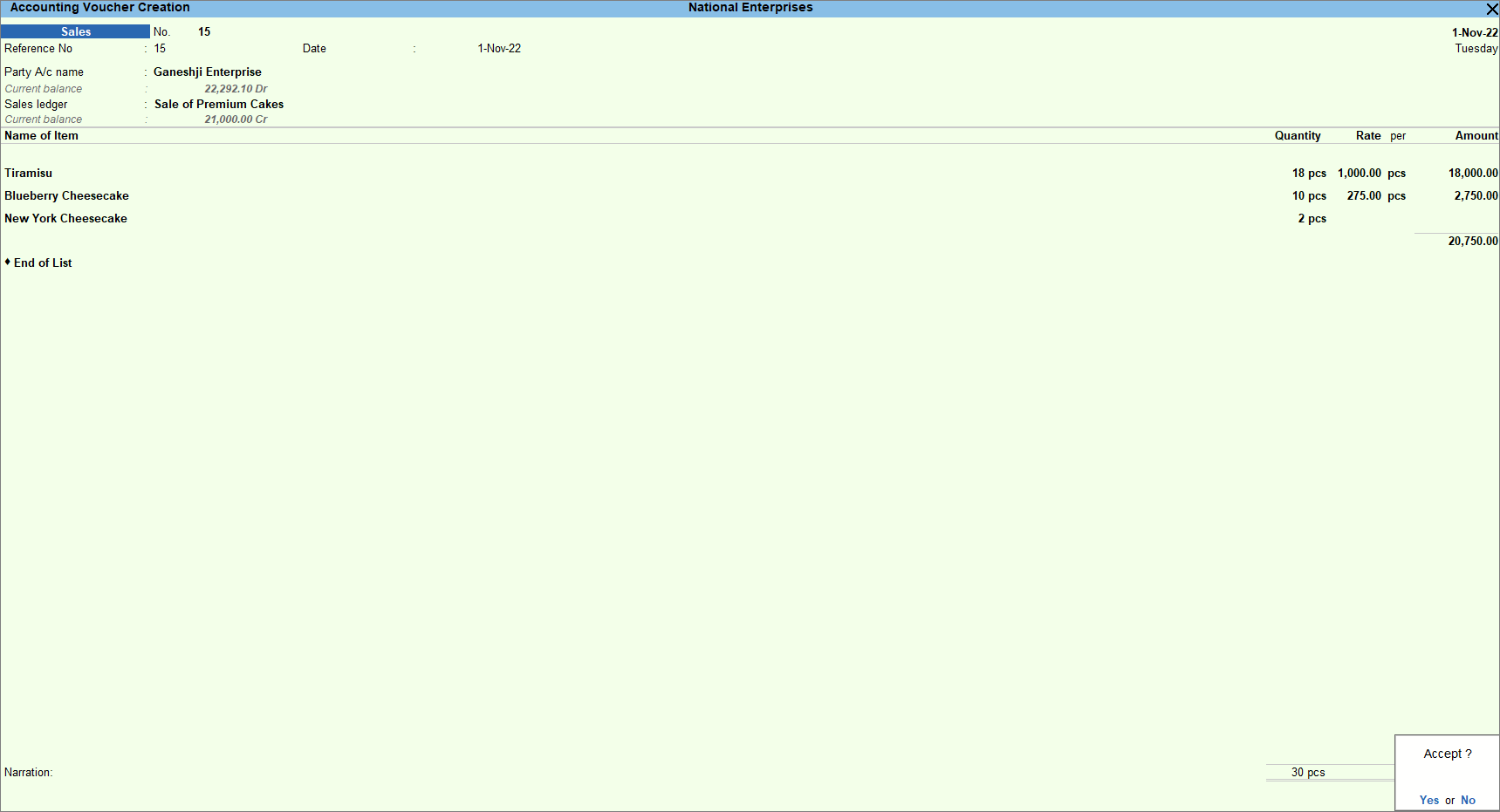
- As always, press Ctrl+A to save.
- Configure the voucher type for sales.
Shortcut Keys Table
| Shortcut Key | Purpose |
|---|---|
| F8 | Open Sales Voucher |
| F11 | Enable Accounting/Inventory Features |
| Alt + G | Go To Menu |
| Ctrl + A | Save Voucher |
| Tab | Move to Next Field |
Summary
- Free items can be recorded using Actual & Billed quantity method.
- Free items can also be recorded as zero-valued transactions.
- Invoice value is calculated only for billed items.
- Stock reduces based on actual quantity supplied.
- Both methods help in proper accounting of promotional sales.
