Sales Register Option in Tally Prime
The Sales Register in TallyPrime provides a clear month-wise summary of all sales transactions in a business. It helps users quickly understand how much sales were made during a particular period.
From the monthly summary, you can drill down to see voucher-wise details of each sales transaction recorded in the system.
The report period and display format can be modified according to business requirements, allowing users to view sales data for any selected date range.
You can also configure the report to display different voucher types, making it easier to analyze specific kinds of sales entries.
TallyPrime allows users to generate columnar periodic reports, view monthly sales summaries, compare sales performance between different periods, and analyze profitability from sales directly through the Sales Register.
View Sales Register report
- Press Alt+G (Go To) > type or select Sales Register.
Alternatively, go to Gateway of Tally > Display More Reports > Account Books > Sales Register.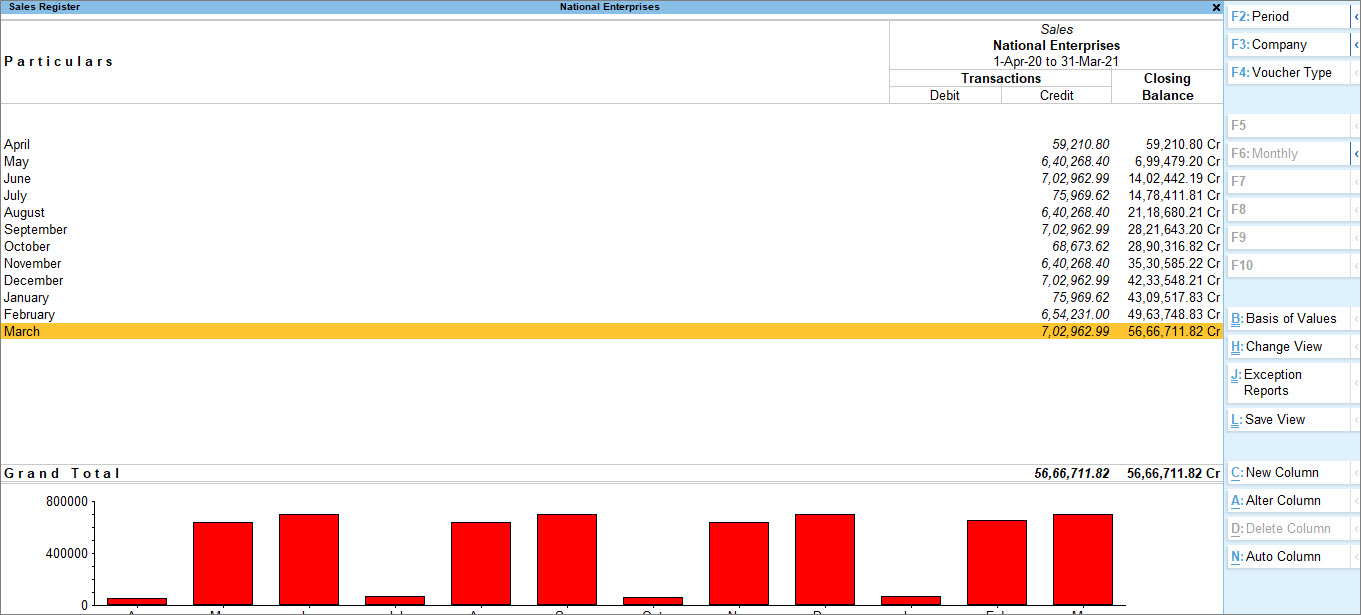
- Press F2 (Period) to set the reporting period as required to analyse periodic sales.
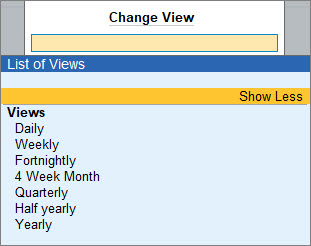
- Press Ctrl+H (Change View) to select the periodic view as required to daily, weekly, fortnightly, monthly, and so on.
- Press F4 (Voucher Type) to view a different register from within an existing register. For example, if you are in Sales Register and want to view the Material Out register, press F4 (Voucher Type) and select Material Out.
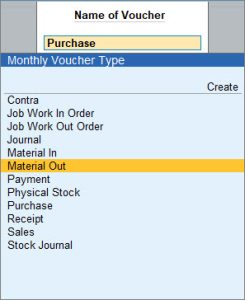
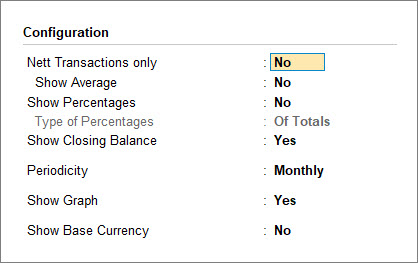
- Press F12 (Configuration) on the Sales Register screen and configure the report with the details of percentages, averages, closing balances, periodicity, and so on as required.
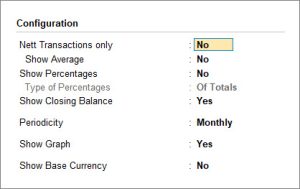
- To view the sales vouchers recorded for a specific month, scroll up or down to select the month and press Enter.