
Receipt Voucher on Sales Bill by Cash
F6 – Receipt Voucher on Sales Bill (By Cash)
Receipt Voucher (F6) is used to record money received from customers against sales bills. It can be received by Cash or Bank.
Example:
- Rs. 16,500 – Monitor Sales Bill Pending
- Customer: Kaveri
- Received by Cash
- Date: 01.04.2024
Important Note: Check available Cash and Bank balance before recording the receipt voucher.
In case of instant payment after sales, you can record cash sales using a sales voucher. In the sales voucher instead of selecting the party ledger, you can select cash account.
Steps to Record Receipt by Cash
Open a Receipt Voucher in the Single-entry mode.
Press Alt+G (Go To) > Create Voucher > press F6 (Receipt).
Alternatively, Gateway of Tally > Vouchers > press F6 (Receipt).
Press Ctrl+H (Change Mode) > select Single Entry.
-
- Enter the Cash and Buyer details.
- Account: Select cash ledger.
- Particulars: Select the ledger for the party who paid the cash.
- Amount: Enter the amount received and press Enter.
The Bill-wise Details screen appears. - In the Bill-wise Details screen, select Agst Ref as the Type of Ref and select the sales voucher number.
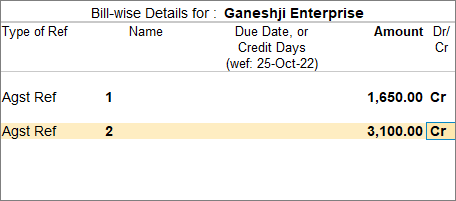
- As always, press Ctrl+A to save and proceed.
- Enter the Cash and Buyer details.
Receipt Voucher on Sales Bill by Bank [ UPI/NEFT/RGTS/IMPS]
Example:
- Rs. 24,500 – Mouse Sales Bill Pending
- Customer: Parvesh
- Received by Bank
- Date: 01.04.2024
Important Note: Check available Cash and Bank balance before recording the receipt voucher.
Steps to Record Receipt by Bank
- Open a Receipt Voucher in the Single-entry mode.
- Press Alt+G (Go To) > Create Voucher > press F6 (Receipt).
Alternatively, Gateway of Tally > Vouchers > press F6 (Receipt). - Press Ctrl+H (Change Mode) > select Single Entry.
- Press Alt+G (Go To) > Create Voucher > press F6 (Receipt).
- Enter the Cash and Buyer details.
- Account: Select Bank ledger.
- Particulars: Select the ledger for the party who paid the cash.
- Amount: Enter the amount received and press Enter.
The Bill-wise Details screen appears. - In the Bill-wise Details screen, select Agst Ref as the Type of Ref and select the sales voucher number.
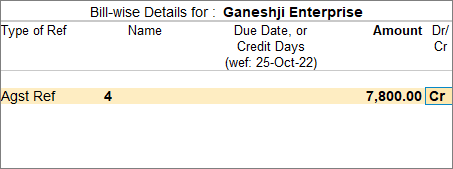
- Provide the receipt details in the Bank Allocation screen.
- In the receipt voucher, press F12 (Configure) > Set Ledger-wise Bank Allocations during voucher creation as Yes to view the bank details of the party.
- In the Bank Allocations screen, press F12 (Configure) > set Show Received From to Yes, to view the party name from whom the amount is received.
- Received From – The Party ledger mentioned in the receipt voucher, appears in the Received From field in the Bank allocation screen.
- Transaction Type – Select the required transaction type.
In case of Transaction Type selected as e-Fund Transfer, in the Bank Allocations screen, press F12 (Configure) > set Show Transfer Mode for e-Payments, to view the Transfer mode field.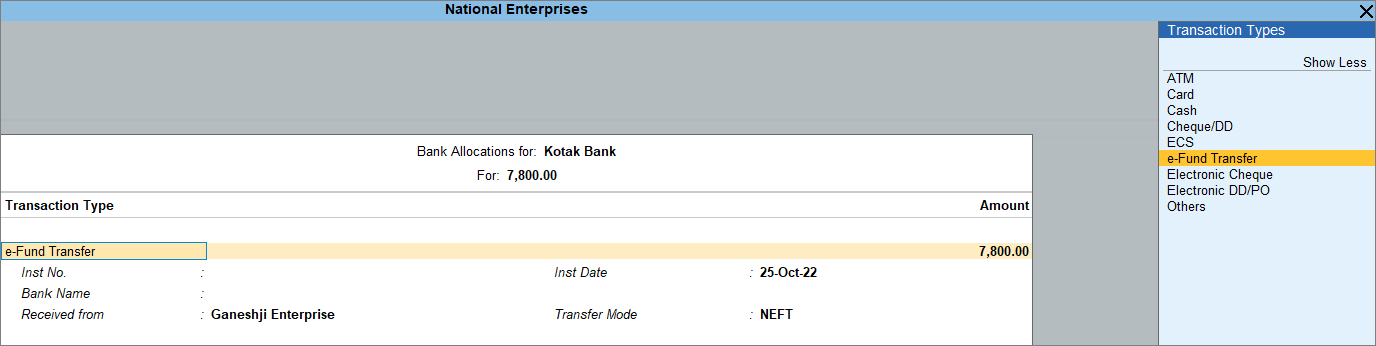
- Press Ctrl+A to save the screen.
Shortcut Keys Table
| Shortcut Key | Purpose |
|---|---|
| F6 | Open Receipt Voucher |
| F2 | Change Date |
| Ctrl + H | Change Voucher Mode |
| Ctrl + A | Save Voucher |
| Tab | Move to Next Field |
Summary
- F6 is used to record money received from customers.
- Receipt can be by Cash or Bank.
- Always select Against Ref to adjust pending sales bill.
- Bank details are required when amount is received through bank.
- Always verify ledger and amount before saving.
