
Introduction & Basics
0/8
Company & Master Setup
0/7
Account Heads || Ledger Create in Tallyprime
0/12
Inventory & Stock Management
0/9
Goods and Services Tax in Tally Prime
0/9
Understanding Voucher Types
0/21
Financial Statements & Reporting
0/6
Advance Tally
GST & Taxation
0/5
Advance Features (Optional / Professional Level)
0/7
Purchase Vouchers – F9 | With GST
How to Enter Purchase Voucher in Item Invoice Mode with GST
This example explains how to record a GST Purchase Entry
in Item Invoice Mode in TallyPrime.
Transaction Details:
Purchase from: Lenovo Ltd, Bangalore
Purchase For: M/s Reliance Smart
Date: 01.04.2024
GST Rate: 18% (CGST 9% + SGST 9%)
Purchase from: Lenovo Ltd, Bangalore
Purchase For: M/s Reliance Smart
Date: 01.04.2024
GST Rate: 18% (CGST 9% + SGST 9%)
Items Purchased
| Item | Qty | Rate (₹) | Amount (₹) |
|---|---|---|---|
| Keyboard | 10 | 670 | 6,700 |
| Mouse | 10 | 280 | 2,800 |
| Monitor | 10 | 3,800 | 38,000 |
| Total Taxable Amount | 47,500 | ||
GST Calculation (18%)
Taxable Amount = ₹47,500
CGST @9% = ₹4,275
SGST @9% = ₹4,275
Total GST = ₹8,550
Final Invoice Amount = ₹56,050
Step – by – Step
Step-by-Step Entry in TallyPrime
Step 1: Open Purchase Voucher
- Press Alt+G → Create Voucher → F9 (Purchase)
- Press F2 and change date to 01.04.2024
- Press Ctrl+H → Select Item Invoice Mode
- Enter Supplier Invoice Number & Date
Step 2: Select Supplier Details
- Party A/c Name → Select Lenovo Ltd Bangalore
- Enter Dispatch & Order details (if required)
- Select Purchase @18% Ledger
Step 3: Enter Stock Item Details
- Select Stock Item → Keyboard
- Enter Quantity = 10
- Rate = 670
- Repeat for Mouse & Monitor
- Select Tax Ledgers → CGST @9% and SGST @9%
- Press Tab to calculate GST automatically
Step 4: Bill-wise Details Window Appears
Now the Bill-wise Details screen will open.
You will see these options:
-
-
New Ref , Agst Ref , Advance , On Account
-
✔ Option 1: New Ref : Used to create a new bill reference.
-
Step 5: Save Voucher
- Press Ctrl+A to Save
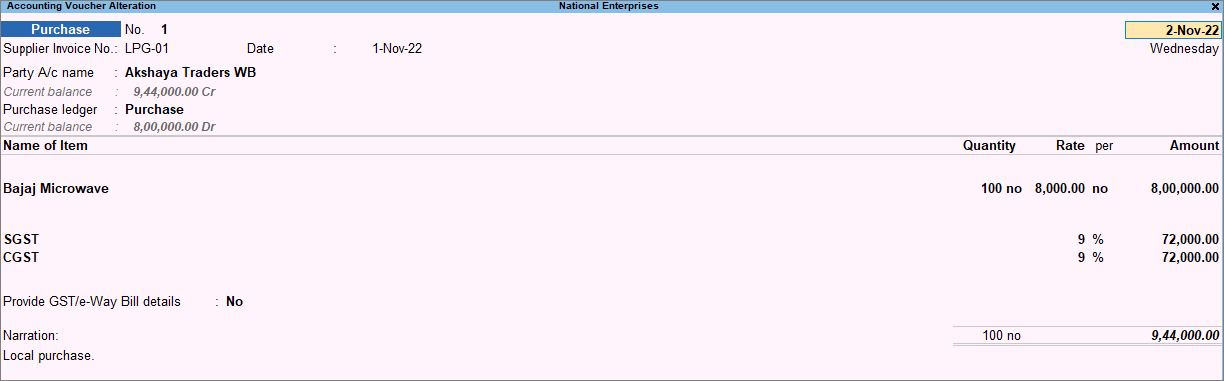
Accounting Impact
- Purchase Account Dr ₹47,500
- Input CGST Dr ₹4,275
- Input SGST Dr ₹4,275
- Lenovo Ltd Bangalore Cr ₹56,050
