
Purchase Vouchers – F9 | Discount
Purchase of Items with Discount
In business, suppliers often provide discounts on purchases. Discounts may be given on the total invoice amount or on individual items (trade discount).
TallyPrime allows you to record discounts in multiple ways — with or without using a discount ledger.
A Purchase Discount is the reduction in purchase price given by the supplier.
It reduces the total payable amount and may be treated as
Indirect Income in accounting.
Types of Purchase Discounts
- Discount on Total Item Amount
- Trade Discount (Item-wise Discount)
- Discount using Ledger
- Discount without Ledger
Purchase with Trade Discount (Item-wise)
M /s Reliance Smart, Purchase, 10 Qty Each Keyboard Rate: 670 on date 01.04.2025 with 10% by Lenovo Ltd Bangalore
Trade discount is given on individual items based on quantity or business terms.
For example: 100 pcs at ₹100 each with 10% discount.
With 10% discount: ₹9,000
Discount Received: ₹1,000
- Press F11 (Features)
- Enable Use Discount Column in Invoices
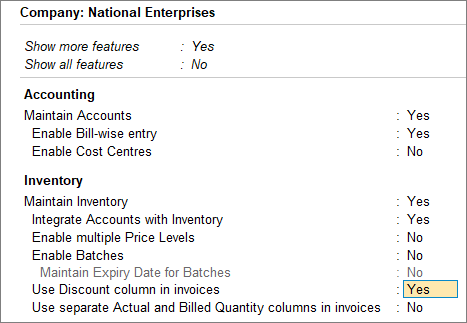
- Press Ctrl+A to Save
Steps:
- Open a purchase voucherin the Item Invoice
- Press Alt+G(Go To) > Create Voucher > press F9 (Purchase).
- F2 for Date change [ 01.04.2024]
- PressCtrl+H (Change Mode)and select Item Invoice.
- Enter the Supplier Invoice No.and Date.
- Provide the supplier details.
- Party A/c name: Select the supplier Lenovo Ltd Bangalore ledger. Enter Dispatch Details and Order Details, as needed.
- Select the tax ledgers – type Purchase tax slab. Select a Ledger Purchase @ Nill
- Enter stock item details.
-
-
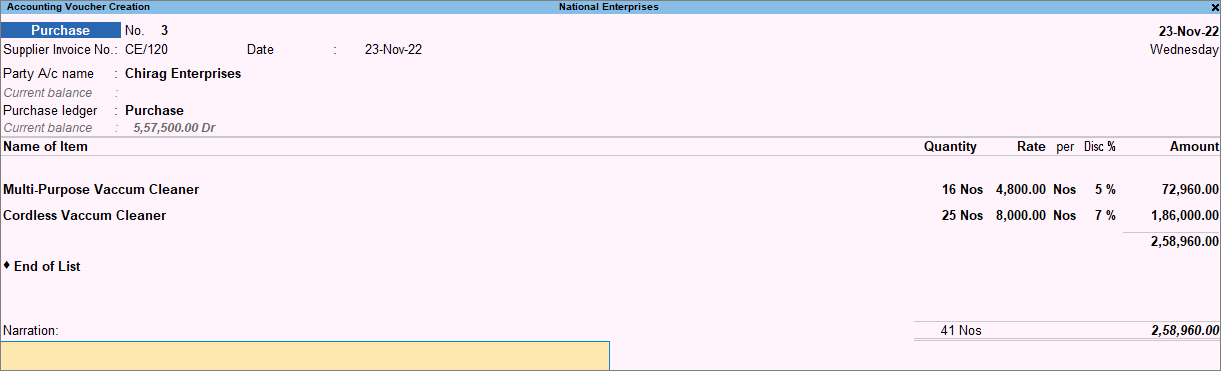
- Provided the Quantity and Rate, enter Disc % for the selected item.
- The Amountfor the given quantity of the stock item is displayed after deducting the discount, without showing any change in the Rate.
-
Bill-wise Details Window Appears
Now the Bill-wise Details screen will open.
You will see these options:
-
-
New Ref , Agst Ref , Advance , On Account
-
✔ Option 1: New Ref : Used to create a new bill reference.
-
-
- Enter the remaining details and accept the screen. As always, you can press Ctrl+Ato save.
-
Purchase with Discount on Total Item Amount
If the supplier gives a discount (for example 10%) on the total item value,
you can record it using a Discount Ledger under Indirect Incomes.
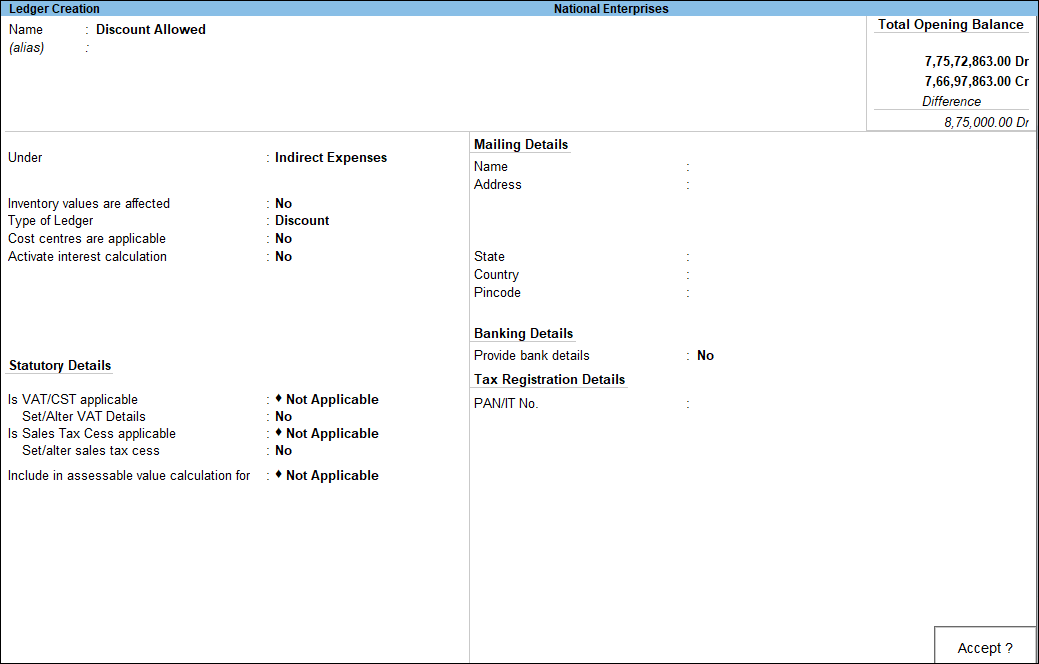
Discount Ledger in TallyPrime
- Gateway of Tally > Create > type or select Ledger > and press Enter.
Alternatively, press Alt+G (Go To) > Create Master > type or select Ledger > and press Enter. - Enter the Name of the ledger.
- Select Indirect Expenses in the Under field.
- Set the option Inventory values are affected to No.
- Select the Type of Ledger as Discount.
Note: The option Type of Ledger is provided based on the state specific requirements of VAT/CST forms and annexures. It appears based on the State selected in the Company VAT Details screen. In this example, Bihar is selected as the State.
The Ledger Creation screen appears as shown below:
- Accept the screen. As always, you can press Ctrl+A to save.
Steps:
- Open a purchase voucherin the Item Invoice
- Press Alt+G(Go To) > Create Voucher > press F9 (Purchase).
- F2 for Date change [ 01.04.2024]
- PressCtrl+H (Change Mode)and select Item Invoice.
- Enter the Supplier Invoice No.and Date.
- Provide the supplier details.
- Party A/c name: Select the supplier Lenovo Ltd Bangalore ledger. Enter Dispatch Details and Order Details, as needed.
- Select the tax ledgers – type Purchase tax slab. Select a Ledger Purchase @ Nill
- Enter stock item details. In the Purchase voucher, after you have selected the stock items, press Enter twice to skip one line.
Alternatively, press Enter > Spacebar > and select End of List.
This takes you to the next line in the screen where you can now select the discount ledger.
In Accounting Invoice, you can simply select the discount ledger after entering the purchase details.
- Provide details of the discount.
- Select the ledger for discounts created under Indirect Incomes.
- Enter the discount percentage (%) under Rate as a negative number (in minus, for example, -10%). TallyPrime applies the discount to the total item amount and displays the discount Amount against the selected discount ledger.
Alternatively, you can enter the Amount.
- Enter the remaining details and accept the screen. As always, you can press Ctrl+A to save.
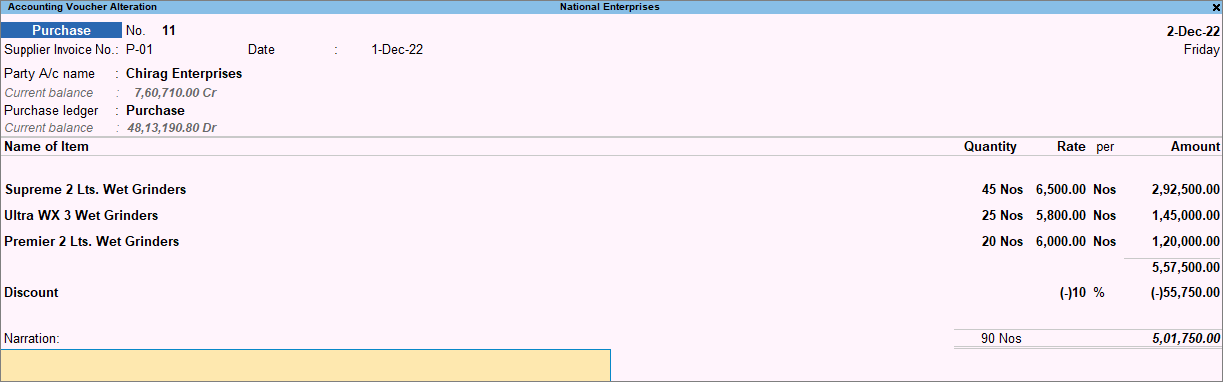
and calculates the final invoice value.
Important Configuration
-
TallyPrime calculates the invoice total by subtracting the discount from the total amount for the items.
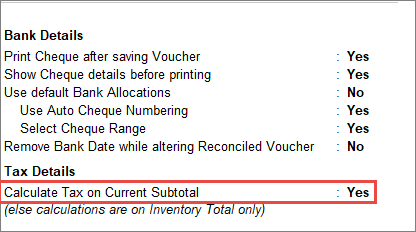
If your supplier calculated the discount after including additional charges, such as transportation, press F12 (Configure) > set Show more configuration to Yes > set Show all configurations to Yes > set Calculate Tax on Current Subtotal to Yes.
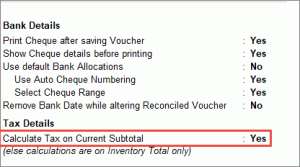
Henceforth, when you select the discount ledger, the discount will be applied to the total amount after including any additional charges, until you change the option in F12 (Configure) of the invoice.
Shortcut Keys – Discount Entry
| Shortcut Key | Function |
|---|---|
| F9 | Open Purchase Voucher |
| F11 | Enable Discount Feature |
| F12 | Configure Voucher Settings |
| Ctrl+A | Save Voucher |
Key Points to Remember
- Total discount → Use Discount Ledger (Indirect Income)
- Item-wise discount → Use Discount Column
- Discount % can be entered as negative value
- Discount reduces final payable amount
- Always verify supplier invoice before saving
