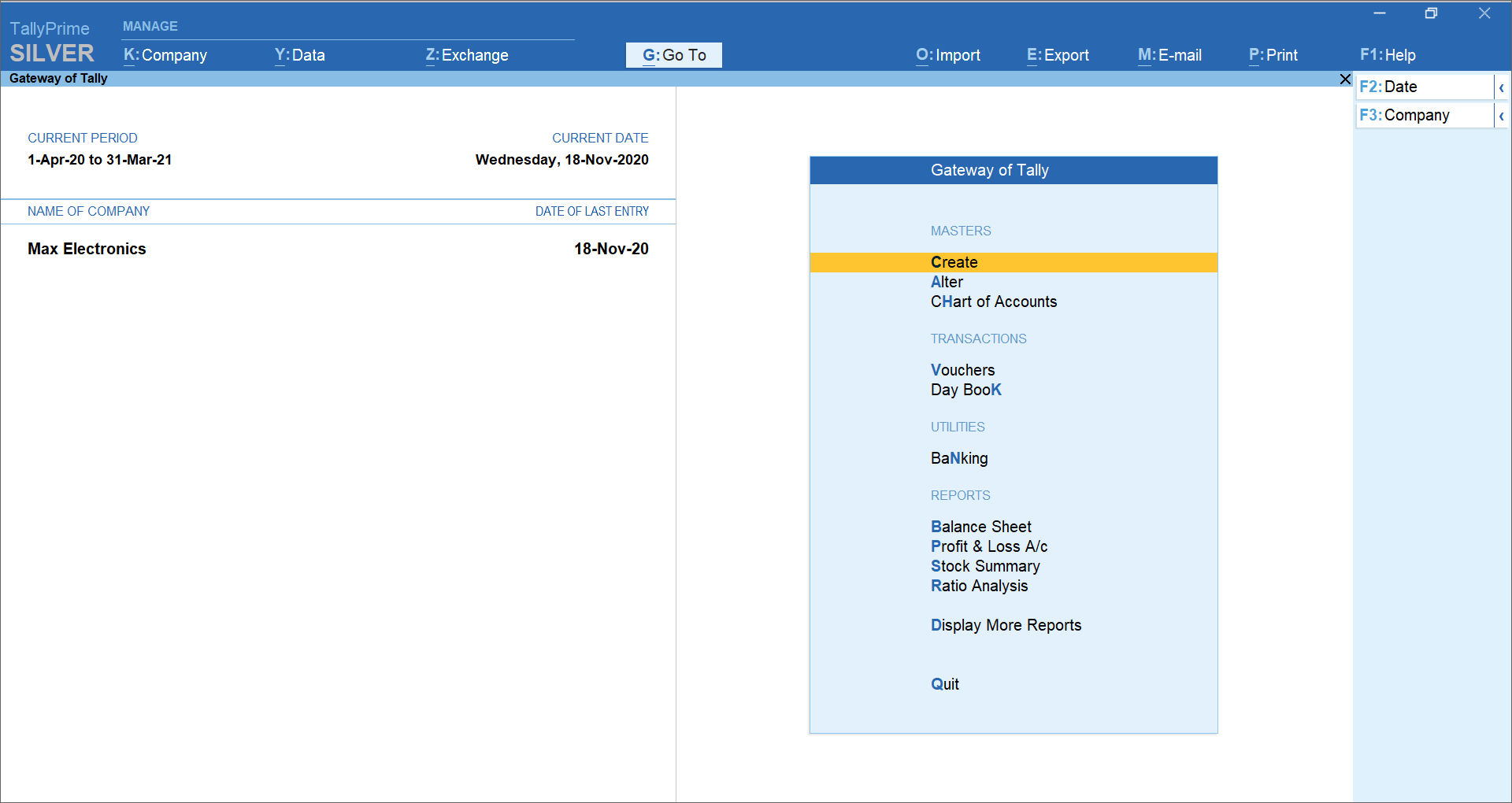
✅ Gateway Tally [ GOT ]
The Gateway of Tally (GOT) is the central “Home Screen” of TallyPrime. It is designed to be clean, and every menu item has a specific “Hot Key” (the bolded letter) for lightning-fast navigation.
Here is a breakdown of the main screen layout and its menus in a modern board format.
1. Top Menu Bar (The Global Settings)
These menus are always visible and control the “environment” of your TallyPrime.
| Menu Name | Shortcut | Purpose |
| K: Company | Alt + K |
Manage your company (Create, Alter, Shut, or change Security). |
| Y: Data | Alt + Y |
Manage your database (Backup, Restore, or Split data). |
| Z: Exchange | Alt + Z |
Synchronize data between branches or offices. |
| G: Go To | Alt + G |
The Search Bar: Jump to any report or task instantly. |
| O: Import | Alt + O |
Bring in data from Excel or other Tally files. |
| E: Export | Alt + E |
Save reports/invoices as PDF, Excel, or JPEG. |
| M: E-mail | Alt + M |
Send invoices or reports directly via email. |
| P: Print | Alt + P |
Print the current screen or report. |
2. Main Menu: Gateway of Tally (The Core Hub)
This is the vertical list in the center of your screen where the daily work happens.
| Category | Menu Item | What you do here |
| Masters | Create / Alter | Set up Ledgers, Stock Items, Groups, and Units. |
| Chart of Accounts | View the entire structure of your accounts/stock. | |
| Transactions | Vouchers | Record Sales, Purchases, Payments, and Receipts. |
| Day Book | See all transactions recorded for a specific day. | |
| Utilities | Banking | Reconcile bank statements, print checks, and deposit slips. |
| Reports | Balance Sheet | View your company’s financial health (Assets vs. Liabilities). |
| Profit & Loss | See your Net Profit/Loss and trading performance. | |
| Stock Summary | Check your current inventory levels and values. | |
| Ratio Analysis | Quick financial health indicators (Current Ratio, etc.). | |
| Display More | Access GST, TDS, Cash Flow, and Inventory reports. |
3. Right Button Bar (The Contextual Keys)
This sidebar changes depending on which screen you are on, but at the Gateway, it shows:
-
F2: Date – Change the current working date.
-
Alt + F2: Period – Change the date range for reports (e.g., Apr to Mar).
-
F3: Company – Switch between multiple open companies.
-
F11: Features – Enable/Disable modules like GST, Payroll, or Inventory.