
Journal Voucher | F7
A Journal Voucher (F7) is used to record transactions that do not involve Cash or Bank accounts.
It is mainly used for:
-
Adjustment Entries
-
Transfer Entries
-
Provision Entries
-
Rectification Entries
👉 In simple words, when you want to adjust Debit and Credit amounts between ledger accounts only, you use Journal Voucher.
🎯 When is Journal Voucher Used?
Journal Voucher is used for:
-
Interest Accrued (Accrued Income / Expense)
-
Depreciation on Fixed Assets
-
Outstanding Expenses
-
Prepaid Expenses
-
Loss or Damage of Goods
-
Tax Adjustment / Reversal Entries
-
Provision for Expenses
-
Transfer of Amount from One Ledger to Another
🔹 Practical Examples
1️⃣ Example – Depreciation on Furniture
Situation:
Furniture value = ₹1,00,000
Depreciation @10% = ₹10,000
Journal Entry:
| Particulars | Debit (₹) | Credit (₹) |
|---|---|---|
| Depreciation A/c | 10,000 | |
| To Furniture A/c | 10,000 |
Explanation:
Depreciation is an expense (Debit)
Furniture value decreases (Credit)
2️⃣ Example – Outstanding Salary
Situation:
Salary for March ₹25,000 not yet paid.
Journal Entry:
| Particulars | Debit | Credit |
|---|---|---|
| Salary A/c | 25,000 | |
| To Outstanding Salary A/c | 25,000 |
Explanation:
Salary is expense (Debit)
Outstanding Salary is Liability (Credit)
3️⃣ Example – Interest Accrued on Fixed Deposit
Situation:
Interest earned but not yet received ₹5,000
Journal Entry:
| Particulars | Debit | Credit |
|---|---|---|
| Interest Receivable A/c | 5,000 | |
| To Interest Income A/c | 5,000 |
4️⃣ Example – Loss or Damage of Goods (Purchase Case)
Situation:
Purchased goods ₹50,000
Goods damaged ₹5,000
GST already claimed during purchase
Now we must reduce:
-
Purchase value
-
Input GST
Journal Entry:
| Particulars | Debit | Credit |
|---|---|---|
| Loss of Goods A/c | 5,000 | |
| To Purchase A/c | 5,000 |
If GST needs reversal:
| Particulars | Debit | Credit |
|---|---|---|
| Purchase A/c | 5,000 | |
| To Input CGST A/c | xxx | |
| To Input SGST A/c | xxx |
Ledger Create for Adjustment of Loss or Damage of Goods
🔹 Before Recording Journal Entry – Create Required Ledgers
You must create necessary ledger accounts such as:
-
Interest Accrued
-
Depreciation
-
Outstanding Expenses
-
Loss or Damage of Goods
📝 Steps to Create “Loss or Damage of Goods” Ledger
Method 1:
-
Go to Gateway of Tally
-
Select Create under Masters
-
Select Ledger
Method 2:
-
Press Alt + G (Go To)
-
Select Create Master
-
Choose Ledger
📌 Fill Ledger Details
-
Name: Loss or Damage of Goods
-
Under: Direct Expenses [ Payment Due / Payable Bills Adjustment in]
-
Type of Ledger: Not Applicable
-
Press Ctrl + A to Save
How to Entry the Journal voucher to account for loss or damage of goods?
to record a journal voucher to account for loss or damage of goods
- Gateway of Tally > Vouchers > press F7 (Journal).
Alternatively, press Alt+G (Go To) > Create Voucher > press F7 (Journal). - Press Alt+J (Stat Adjustment).
- Select the options as shown below.
- Select Type of duty/tax as Excise.
- Select Nature of adjustment as Shortage/Damage/Loss of Excise Stock.
The completed Stat Adjustment Details screen appears as shown below: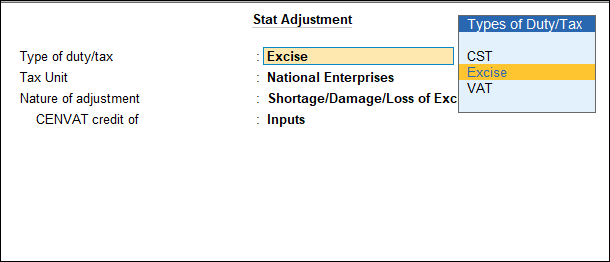
- Debit the expense ledger (grouped under Direct Expenses, Is Excise Applicable is set to Not Applicable).
- Enter the amount.
- Credit the purchase ledger to reverse the purchase cost.
- Press Enter to view Inventory Allocations screen.
- In the Inventory Allocations screen, select the name of the item.
- Press Enter to view the Supplier Details. To provide supplier details
- Select the purchase bill against which the goods are lost or wasted.
- Enter the quantity of item which is lost or destroyed in Quantity Utilised column.
- Press Enter to save.
- Provide the details.
- Enter details in Stock Item Allocations screen.
- Select the Godown.
- Enter the Quantity of goods lost/wasted.
- Enter the Rate at which the goods was purchased. Amount will be calculated and displayed automatically.
- Press Enter. The item details are displayed in Inventory Allocations screen.

- Press Ctrl+A to save.
