
Introduction & Basics
0/8
Company & Master Setup
0/7
Account Heads || Ledger Create in Tallyprime
0/12
Inventory & Stock Management
0/9
Goods and Services Tax in Tally Prime
0/9
Understanding Voucher Types
0/21
Financial Statements & Reporting
0/6
Advance Tally
GST & Taxation
0/5
Advance Features (Optional / Professional Level)
0/7
✅ Display | Alter | Delete – Items , Units & Group
👁️ How to Display Stock Group, Stock Items & Units of Measure
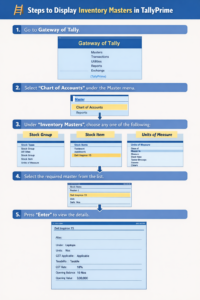
🪜 Steps to Display
-
📌 Method 1: Using Chart of Accounts
-
Go to Gateway of Tally.
-
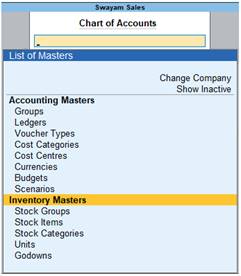
Select Chart of Accounts under the Master menu.
-
Under Inventory Masters, choose any one of the following:
-
Stock Group
-
Stock Item
-
Units of Measure
-
-
Select the required master from the list.
-
Press Enter to view the details.
-
Purpose: This option is used to view already created Inventory Masters.
✏️ How to Alter Stock Group, Stock Items & Units of Measure
🪜 Steps to Alter
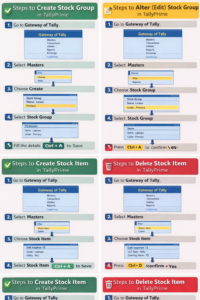
- Go to Gateway of Tally.
- Select Alter under the Masters menu.
- Under Inventory Masters, select:
- Stock Group
- Stock Item
- Units of Measure
Choose the master you want to modify.
- Make the required changes (Name, Unit, GST details, etc.).
- Press Enter and then Ctrl + A to Accept and Save.
Purpose: Alter option is used to modify existing Inventory Masters.
🗑️ How to Delete Stock Group, Stock Items & Units of Measure
🪜 Steps to Delete
- Go to Gateway of Tally.
- Select Alter under the Masters menu.
- Under Inventory Masters, select:
- Stock Group
- Stock Item
- Units of Measure
Choose the master you want to delete.
- Press Alt + D to delete.
- When the confirmation message appears, select Yes to confirm deletion.
Important Note: You cannot delete a Stock Item or Stock Group if it is used in any transaction.
🧠 Summary
- Display: Used to View Inventory Masters.
- Alter: Used to Modify existing Inventory Masters.
- Delete: Used to Remove unused Inventory Masters.
