
Set Up Your GST Profile in TallyPrime
Setting up your GST profile allows you to stay connected with the GST portal for uninterrupted
Connected GST activities such as Upload, Download, and Filing.
Before configuring GST login in TallyPrime, you must first enable API Access on the GST Portal for your GSTIN.
Enable API Requests on the GST Portal
- Login to the official GST Portal using your GST credentials.
- Go to My Profile section.
- Select Manage API Access.
- Enable API Access for your GSTIN.
- Set the API Access Duration (for example: 30 days).
- Click Confirm to activate.
Set Up GST Login Credentials in TallyPrime
- Open your Company in TallyPrime.
- Go to F11 (Features) → Enable GST.
- Open GST Details screen.
- Under Connected GST Details, enter your GST Portal Username.
- Select Mode of Filing – DSC (Digital Signature Certificate) or EVC (Electronic Verification Code).
- Press Ctrl + A to Save.
Manage GST Login Sessions
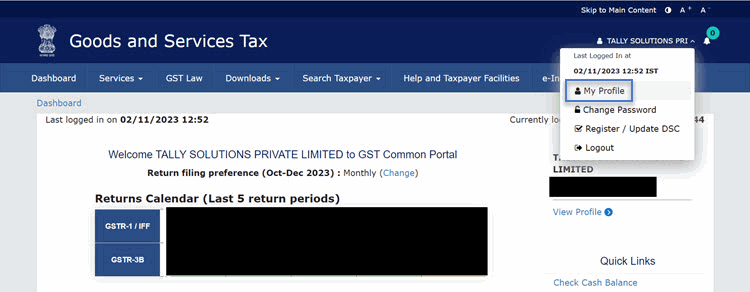
- Log in to the GST portal.
- Click your username in the top-right corner.
- Select My Profile from the list of options.
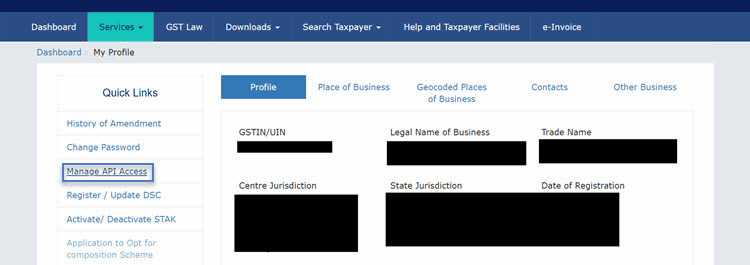
- In the My Profile screen, under Quick Links, click Manage API Access.
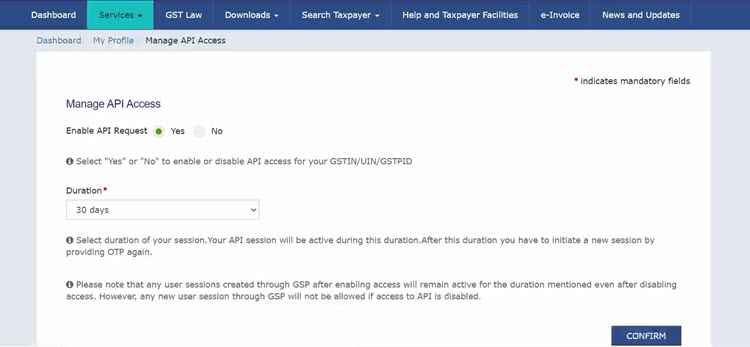
- Set the Enable API Request option to Yes.
- Set the Duration to 6 hours, as this is the current recommendation. This will ensure that your session remains safe and secure for 6 hours, after which you can log in again, as per your requirements.
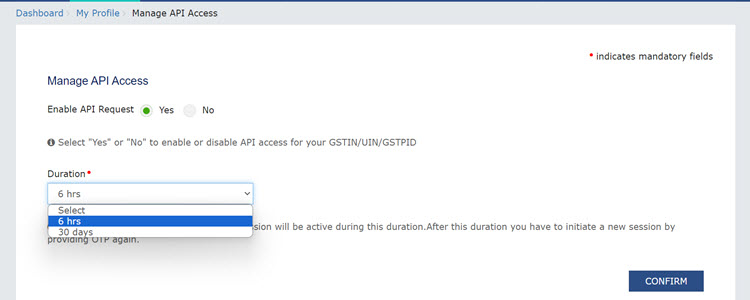
- Click Confirm
Now you can proceed to manage the credentials in TallyPrime and reap the benefits of the Connected GST experience.
Set Up GST Login in TallyPrime
- Ensure to specify the Connected GST Details.
- Set up GST Login session.
- Press Alt+Z (Exchange) > All GST Options > GST Login & Logout.
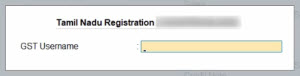
- Enter your GST Username.
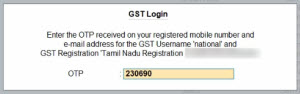
- Enter the OTP received on your registered mobile number.
Once you have logged in, the session will be valid for six hours, which will ensure the safety and security of your activities. The GST Login & Logout screen appears, where you can view the details of your GST sessions, such as the name of the registration, GSTIN/UIN, and the validity.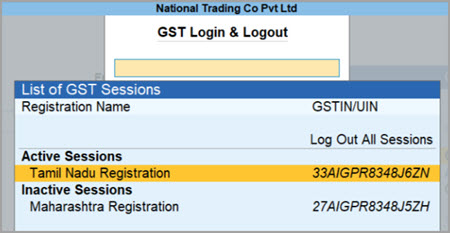
Log out of all GST session: Use this option anytime you want to log out of the GST session.
Reset GST Login: Use this option anytime you want to clear all of your GST login details, along with your active and inactive sessions.
- Press F1 (Help) > Troubleshooting > Reset GST Login.
- Press R to reset your GST login details.
- Press L to log out of the GST sessions, if you do not want to reset all your GST credentials.
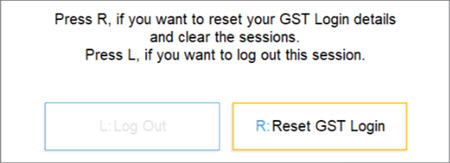
- Press Enter to confirm reset.
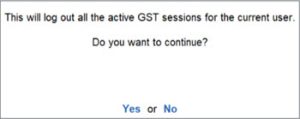
The GST login details will be cleared, after which you can enter your fresh details, as needed.
Always verify GSTIN, Username, and API status before attempting return filing to prevent upload errors.
