
Go To Search Tab
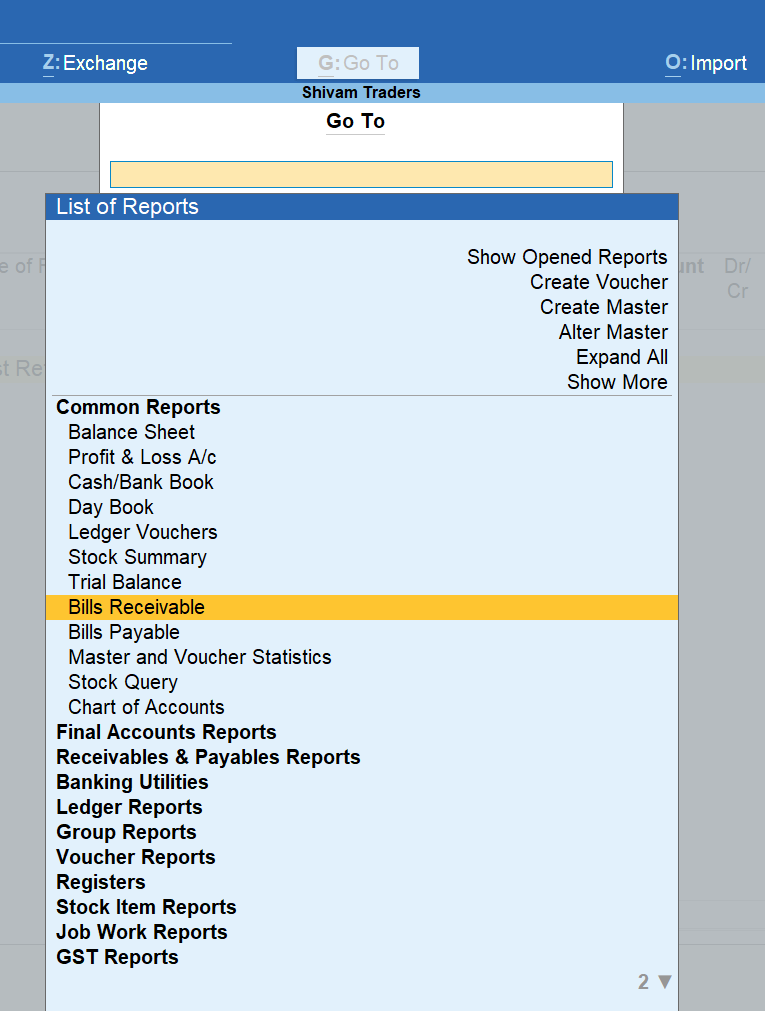
Here is a simplified board-style breakdown of how the Go To Search Tab works and how to master it.
🚀 The “Go To” Power Board
| Action Type | What to Type in Search | The “Magic” Result |
| Quick Reports | “Balance”, “Profit”, “Stock” | Instantly opens the report without leaving your current voucher. |
| Taxation | “GSTR 1”, “GST Return”, “Tax” | Jumps straight to compliance dashboards. |
| Creation | “Create Ledger”, “Create Item” | Allows you to set up new masters in the middle of a task. |
| Navigation | “Voucher”, “Daybook” | Switches your view to transaction entries or lists. |
| Discovery | “Show More” | Reveals hidden or advanced reports you didn’t know existed. |
💡 3 Pro-Tips for the Search Tab
-
The “Pause & Resume” Trick:
-
If you are halfway through a long Sales Invoice and a client calls asking for their Outstanding Balance, don’t cancel your work!
-
Press Alt + G → Search “Ledger Outstandings” → Give them the info → Press Esc once.
-
Result: You are right back in your invoice exactly where you left off.
-
-
Fuzzy Search:
-
You don’t need the exact name. Typing “Payable” will show you “Bills Payable,” “Group Outstandings,” and “Ledger Outstandings.” It understands your intent.
-
-
Manage Open Reports:
-
At the top of the Go To list, select “Show Opened Reports”. This shows you every screen you currently have “paused” in the background so you can jump between them like tabs in a web browser.
-
Alt + G (Go To) vs. Ctrl + G (Switch To)
| Feature | Shortcut | Behavior |
| Go To | Alt + G | Adds a layer. Keeps your current work open in the background. |
| Switch To | Ctrl + G | Replaces. Closes your current screen and moves you to the new one. |
